
Creating and Editing Asset Scope Queries
Creating Asset Scope Queries
An asset scope query can be used to define the assets included in a data scope. The assets returned by the query are included in the data scope. For example, they can be determined by installed OS, IP addresses, or tagged assets or any other queryable data.
Note
Existing saved queries cannot be used as data scope queries.
Data Scope queries cannot use other saved queries as part of the data scope definition.
- Use the Query Wizard to create a new query according to the criteria you require.

-
Click Search, all relevant assets are displayed.
-
Click Save As to save this query.
-
The Save As New Query dialog opens.
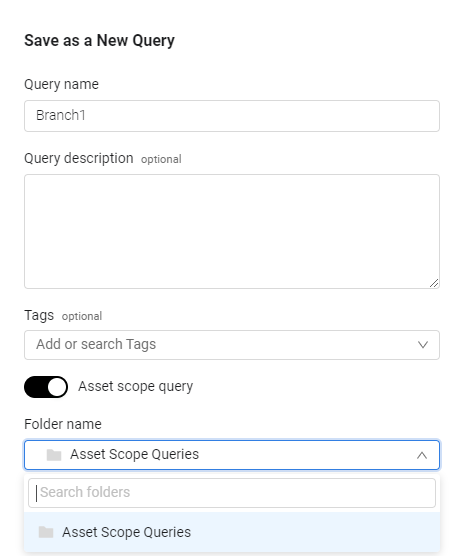
- Enable Asset scope query to save this query as an asset scope query, select a folder to save the query and click Save. By default asset scope queries are saved in the Asset Scope folder.
Note
The Asset Scope query toggle is only visible for users with relevant permissions.
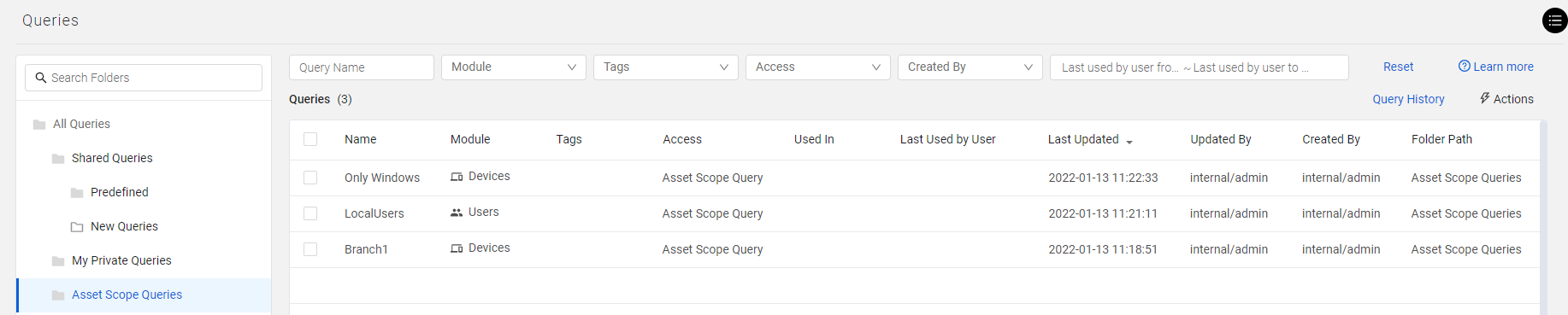
When you open the Queries page, this query appears in the Asset Scope Query folder. The results of an asset scope query define the set of data included within a data scope and on which a user can perform all Axonius activities.
Note
Users who have Manage data scope permissions can use asset scope queries like any other saved query (for instance, when creating dashboard charts, etc.).
Creating an Asset Scope Query from the New Data Scope Drawer
You can also create a new Asset Scope query directly from the New Data Scope drawer. To create a new Asset Scope query
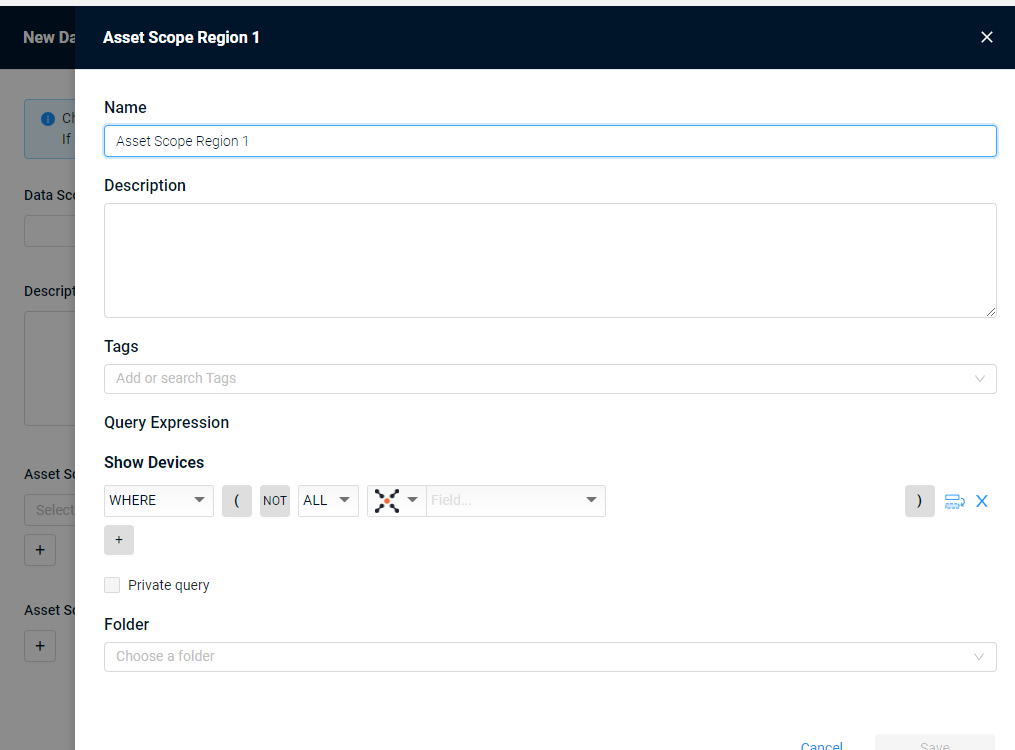
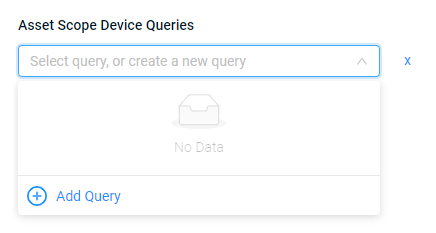
- Click Add Query; the Query Wizard opens.
-
In Name, enter a name for the new query.
-
In Description, enter a description that includes what assets the query returns.
-
In Tags, add tags if necessary.
-
In Cache Settings, select whether to Always keep cached or deselect to not keep cached. When selected, query results are updated and stored in cache. This makes the query run faster.
Note
This option only appears when the Enable caching on recently used queries option is enabled in the Cache and Performance settings.
- In Query Expression, select the query parameters. For more about using the Query Wizard, see Creating Queries with the Query Wizard.
- Select a folder to save the query and click Save. By default asset scope queries are saved in the Asset Scope folder.
The new query appears as an asset scope query on the Queries page.
The query drawer closes and you are returned to the New Data Scope drawer.
- Click Save, the new Data Scope you created appears in the Data Scope list.
You can edit/delete the data scope as required.
Note
If you do not choose any asset scope queries at all, then the assigned users will have access to all assets on the system.
Editing Asset Scope Queries
When you edit an asset scope query, the set of assets available to the users associated with the data scope is updated accordingly.
Note
Be careful when you change an asset scope query. This affects the scope of the assets included in dashboard charts, Reports, Enforcement Actions, etc. that the users assigned to the data scope have created.
Updated 3 months ago