
BMC Atrium CMDB
BMC Atrium CMDB stores information about the configuration items (CIs) in your IT environment and the relationships between them.
Use Cases the Adapter Solves
- Device and CI Inventory: Maintain a comprehensive, up-to-date inventory of all configuration items managed in BMC Atrium CMDB, enabling full visibility across your IT environment in Axonius.
- Software Asset Tracking: Track installed software on devices to support license management, patch compliance, and software inventory reporting (requires enabling the Fetch Software advanced setting).
- Compliance and Vulnerability Management: Identify devices running specific software versions or missing patches to prioritize remediation and verify compliance across your device fleet.
Types of Assets Fetched
This adapter fetches the following types of assets:
- Devices, Software, SaaS Applications
Before You Begin
Required Ports
- TCP port 443 (HTTPS)
Note
The BMC Remedy AR System REST API uses HTTP by default. HTTPS (port 443) must be configured on the AR System server. The port may vary depending on your BMC AR System configuration. Consult your BMC administrator for the correct port.
Authentication Methods
JWT token authentication.
APIs
Axonius uses the BMC Atrium Core 9.0 API.
The following endpoints are called:
Authentication
POST /api/jwt/login
AR System (arsys) API source
OPTIONS /api/arsys/v1.0/entry/{form}GET /api/arsys/v1.0/entry/{form}GET /api/arsys/v1.0/entry/AST:Attributesc)GET /api/arsys/v1.0/entry/AST:AssetPeople
CMDB API source
GET /api/cmdb/v1.0/instances/BMC.ASSET/BMC.CORE/BMC_ComputerSystemGET /api/cmdb/v1.0/instances/BMC.ASSET/BMC.CORE/BMC_SystemSoftware- Fetch software records (when Fetch Software is enabled)GET /api/cmdb/v1.0/instances/BMC.ASSET/BMC.CORE/BMC_HostedSystemComponents- Fetch device-to-software relationships (when Fetch Software is enabled)GET /api/cmdb/v1.0/instances/{dataset_id}/{namespace}/{class_name}- Fetch custom CMDB class instances (when Fetch custom instance(s) is enabled)GET /api/arsys/v1.0/entry/AST:AttributesGET /api/arsys/v1.0/entry/AST:AssetPeople- Fetch asset-to-person relationships per device (when CMDB API fetch AST:AssetPeople is enabled)GET /api/cmdb/v1.0/instances/BMC.ASSET/BMC.CORE/BMC_Product- Fetch product instances (when Fetch Software (BMC_Product) is enabled)
Required Permissions
The user account provided to Axonius must have the following permissions in BMC Remedy AR System:
- CMDB Data View role — Required to read configuration item instances from BMC CMDB classes.
- Membership in an AR System group with row-level read access (
CMDBRowLevelSecurity) for the relevant CMDB classes (for example,BMC_ComputerSystem,BMC_SystemSoftware,BMC_HostedSystemComponents).
Note
Permissions in BMC Remedy AR System are managed at both the group level (server-specific) and the role level (application-specific). An AR System administrator must map the CMDB Data View role to the appropriate group and ensure the service account has row-level access to all CMDB classes that Axonius needs to read. For more information, see Roles and permissions in the BMC documentation.
Connecting the Adapter in Axonius
Navigate to the Adapters page, search for BMC Atrium CMDB, and click on the adapter tile. Click Add Connection.
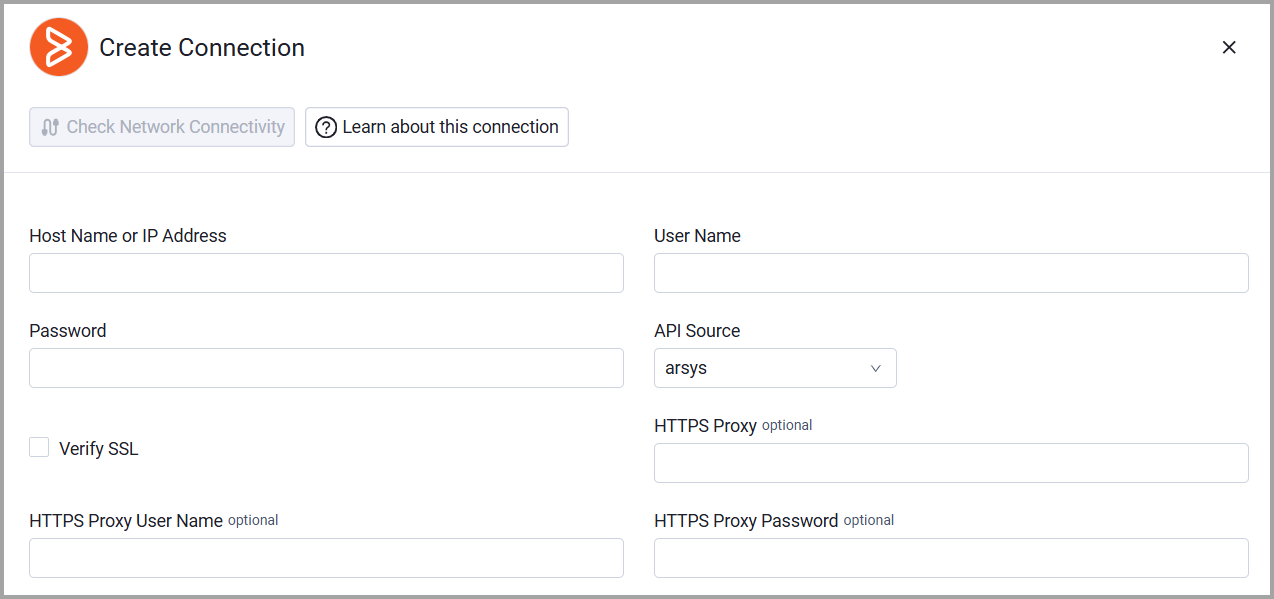
To connect the adapter in Axonius, provide the following parameters:
Required Parameters
- Host Name or IP Address - The hostname or IP address of the BMC Atrium CMDB server.
- User Name and Password The credentials for a user account that has the permissions to fetch assets.
- API Source (required, default: arsys) - Select the type of API source from the dropdown:
- If an AR System server, select arsys
- If a BMC Atrium Configuration Management Database, select cmdb
Optional Parameters
- Verify SSL - Select to verify the SSL certificate offered by the value supplied in Host Name or IP Address. For more details, see SSL Trust & CA Settings.
- HTTPS Proxy - A proxy to use when connecting to the value supplied in Host Name or IP Address.
- HTTPS Proxy User Name - The user name to use when connecting to the value supplied in Host Name or IP Address via the value supplied in HTTPS Proxy.
- HTTPS Proxy Password - The password to use when connecting to the value supplied in Host Name or IP Address via the value supplied in HTTPS Proxy.
To learn more about common adapter connection parameters and buttons, see Adding a New Adapter Connection.
Advanced Settings
Note
Advanced settings can either apply for all connections for this adapter, or you can set different advanced settings and/or different scheduling for a specific connection, refer to Advanced Configuration for Adapters.
Skip devices marked as Deleted - Select to exclude deleted devices from the fetch.
Arsys Settings
- Specific Field list - When the API Source is 'ARSYS', specify which fields to fetch. All unspecified default fields will be ignored.
Note
The fields must match the names appearing in the API response.
- Device Forms (default: AST:ComputerSystem) - Specify the Arsys forms from which devices will be fetched. By default, devices are fetched from the
AST:ComputerSystemform. You can add additional forms such asAST:BaseElementto fetch devices from multiple sources.
Note
Enter form names exactly as they appear in the Arsys API (e.g.,
AST:ComputerSystem,AST:BaseElement). All forms must follow the same schema structure asAST:ComputerSystem.
CMDB Settings
- CMDB API Page Size (default: 500) - Specify the page limit for CMDB API requests.
- CMDB API Qualification - Enter a filter for the CMDB API requests, if needed.
- CMDB API fetch AST:AssetPeople (default: true) - Select this option to fetch users.
- Fetch custom instance(s) - Toggle on this option to fetch devices from outside of the standard BMC_ComputerSystem class.
- Custom instance(s) (optional) - Enter a list of dataset ID, namespace, class names to fetch devices from in this format: "Dataset ID/Namespace/Class Name".
- Fetch specific attributes (CMDB API) (optional) - Enter a list of specific customer-provided attributes to fetch. When filling in attributes, the fields
ReconciliationIdentity,Name, andSerialNumbermust be present for devices to be parsed. If no additional attributes are entered, the adapter will fetch all available attributes for each device. - Fetch Software (BMC_SystemSoftware) (default: False) - Select to fetch software data from the BMC_SystemSoftware and BMC_HostedSystemComponents CMDB classes and enrich devices with installed software information.
- Fetch Software (BMC_Product) - Select this option to fetch product instances from CMDB and enrich devices with installed software data.
Note
To learn more about Adapter Configuration tab advanced settings, see Adapter Advanced Settings.
Related Enforcement Actions:
Updated 26 days ago