
Changing Dashboard Access Permissions
You can change the access permissions for dashboards.
Each chart in a dashboard also has associated queries with their own permissions. When the assigned permissions for a query are higher than the current permissions, the query is also updated to match the dashboard's permissions. For example, when a dashboard's permissions are changed from Private to Public, any queries with Private access are updated to Public access.
Notes
A dashboard that has Shared or Public access cannot be changed Private access.
A shared dashboard can only be edited by a user in the Global data scope.
To move a dashboard to Shared access a user must be in the Global data scope.
When you change access permissions, the dashboard is moved to the appropriate folder according to the new permissions.
When you change the access permissions from Private to Public by selecting System Access, and there are underlying chart queries need to be updated as well, Axonius verifies that you have the required permissions to make this change. If you don't have the necessary permissions, a message is displayed informing you that you need additional permissions.
To edit access permissions of a dashboard:
- On the Dashboards page, find the dashboard you want to edit in the folders pane and click the 3-dot menu next to the dashboard name. Then select Edit.
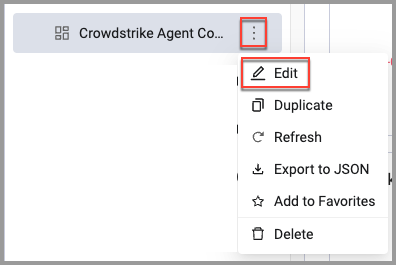
The Edit Dashboard dialog opens.
- In Who has access, configure the access privileges for the dashboard.
- Click Save. When updating permissions to Shared or Public, if necessary, a message is displayed listing the affected charts, the relevant underlying queries, and where the queries are used. Hover over a chart name to see more detailed information about where the query is used. After verifying the changes, click Change Permissions to Shared/Public to update the permissions of the dashboard and all underlying queries.
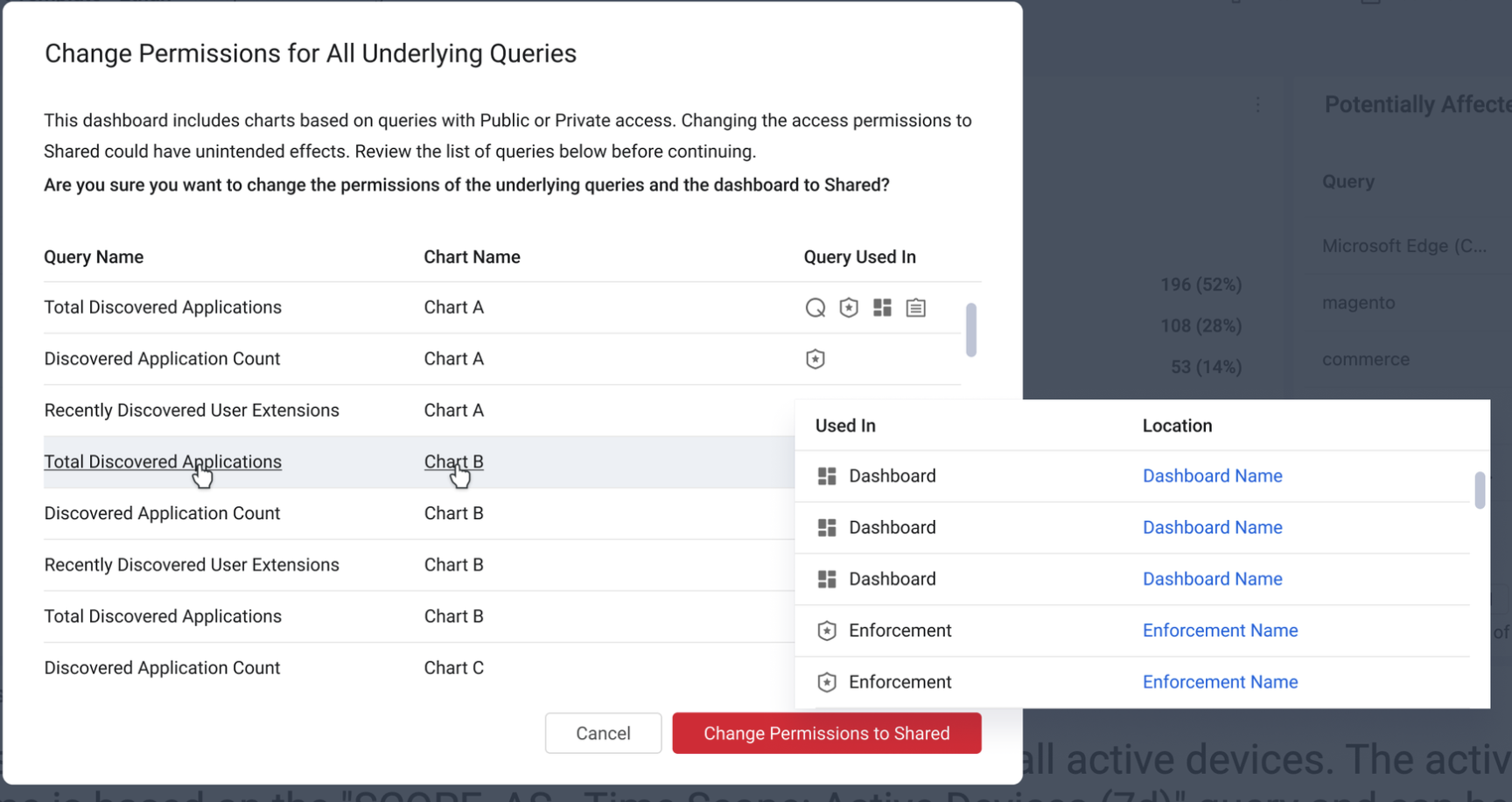
The dashboard is updated and, if necessary, moved to the appropriate folder according to the access permissions you selected, and displayed on the Dashboards page.
See Performing Actions on Dashboards for more options.
Updated about 1 month ago