
Palo Alto Networks Cortex XDR
Palo Alto Networks Cortex XDR is a detection and response app that natively integrates network, endpoint, and cloud data to detect threats and stop sophisticated attacks.
Use Cases the Adapter Solves
- Unified Endpoint Visibility: Consolidate endpoint data from Cortex XDR with other security and IT tools in Axonius to maintain a complete, deduplicated asset inventory across your environment.
- Threat and Vulnerability Correlation: Combine XDR endpoint detection and vulnerability data with other sources in Axonius to identify and prioritize at-risk devices across your fleet.
- Hardware Inventory Enrichment: Leverage Cortex XDR Host Insights to enrich device records with hardware specifications - including CPU, memory, manufacturer, and model - without deploying additional agents.
Asset Types Fetched
- Devices, Aggregated Security Findings, Users, Software, Roles, Groups, SaaS Applications, Alerts/Incidents
Before You Begin
Ports
- TCP port 80/443
Authentication Method
- API Key ID / API Key
APIs
Axonius uses the Cortex XDR APIs.
For details on generating an Advanced Security Level API, see Get Started with Cortex XDR APIs.
Permissions
The value supplied in API Key must be associated with credentials that have permissions for the following in order to fetch assets:
Assets
- Network config - View
- Compliance - View
- Asset Inventory - View
Endpoint
- Endpoint Admin - View (View/Edit for EC)
- Device Control - View (View/Edit for EC)
Incident Response
- Query Center - View
- Personal Query Library - View
- Host Insights - View
Note
To fetch assets from XDR version 4.x and above, or the XSIAM product, you must also have the Endpoint Admin - Agent Administrations permission.
Setting Up Palo Alto Networks Cortex XDR to Work with Axonius
- Log in to the Cortex XDR console.
- Navigate to Settings > Configurations > Integrations > API Keys.
- Click + New Key and select Advanced as the security level. A standard key will not work - this integration requires an Advanced Security level API key.
- Copy the API Key and note the API Key ID.
- Navigate to Settings > General Settings to find your Cortex XDR domain (FQDN). Example:
api-CUSTOMER.xdr.us.paloaltonetworks.com.
For full details, see Get Started with Cortex XDR APIs.
Connecting the Adapter in Axonius
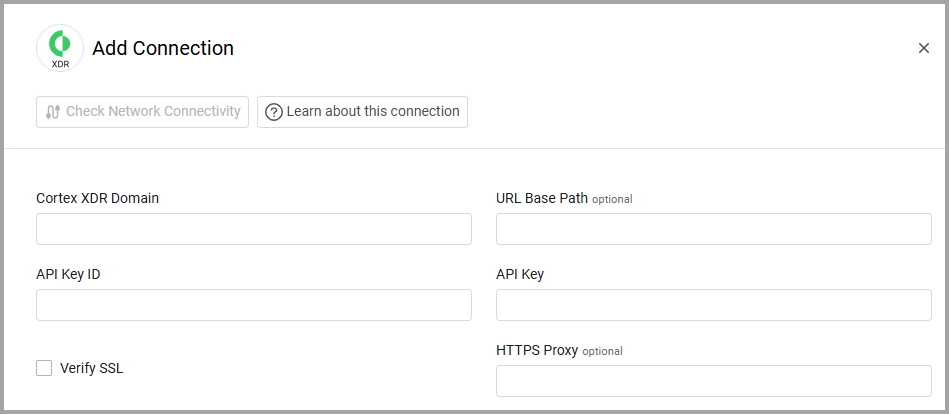
To connect the adapter in Axonius, provide the following parameters:
Required Parameters
- Cortex XDR Domain - The hostname of the Palo Alto Networks Cortex XDR API server. Example:
api-CUSTOMER.xdr.us.paloaltonetworks.com - API Key ID and API Key - Specify the API key and the API key ID of an Advanced Security Level API, as generated in Cortex XDR app. A standard API key will not work - this integration requires an Advanced Security level API key. For more details on generating an Advanced Security Level API, see Get Started with Cortex XDR APIs.
Optional Parameters
- URL Base Path - Specify the fully qualified domain name (FQDN). For more details, see Get Started with Cortex XDR APIs.
- Verify SSL - Select whether to verify the SSL certificate of the server against the CA database inside of Axonius. For more details, see SSL Trust & CA Settings.
- HTTPS Proxy - Connect the adapter to a proxy instead of directly connecting it to the domain.
To learn more about common adapter connection parameters and buttons, see Adding a New Adapter Connection.
Advanced Settings
Note
Advanced settings can either apply to all connections for this adapter, or to a specific connection. Refer to Advanced Configuration for Adapters.
-
Query timeframe configuration in seconds - Use this setting to set a timeframe in seconds to search in for all XQL queries.
-
Fetch policies - Select whether to fetch policies.
-
Do not fetch devices with disconnected status - Select to not fetch devices that have the 'Disconnected' status.
-
Fetch software information - Select whether to fetch information about installed software.
-
Fetch daemon information - Select this option to fetch daemon information for each device.
- XQL filter for daemon records - When you enable Fetch daemon information this field is enabled and you can enter a Custom XQL filter to append to the daemon query. In this way you can can narrow down the daemon query to fetch only the daemons you need. This is useful in large environments.
-
Fetch DNS information - Toggle on this option to enrich devices with DNS query information. When you toggle on this option, two additional options are available
- XQL timeframe for DNS records (optional) - Specify the XQL for DNS record Timeframe.
- XQL filter for DNS records - Specify the XQL to filter the included DNS records.
-
Fetch vulnerability information - Select this option to fetch vulnerability information for devices.
-
Fetch device users information - Select this option to fetch a list of users per device.
-
Fetch device serial number - Select this option to fetch the device serial number.
-
Fetch manual protection pause - Select this option to fetch the manual protection pause field.
-
Use Cortex XDR in Agent Versions Name - Select this option to use Cortex XDR in the Agent Versions Name.
-
Fetch Incidents and Alerts - Enable this option to fetch incidents and alerts.
- Incidents and Alerts Timeframe (Days) (default: 30) - Specify the number of days to look back when fetching incidents and alerts. Valid range: 1-90 days. This setting allows you to control the volume of incident and alert data retrieved by limiting the lookback window.
Note
The Incidents and Alerts Timeframe setting provides flexibility in managing the amount of security event data fetched from Cortex XDR. A shorter timeframe (e.g., 7 days) reduces data volume and improves performance, while a longer timeframe (up to 90 days) provides more historical context for security investigations.
-
Fetch EDR Information Settings - Expand this option to enrich devices with security-specific EDR (Endpoint Detection and Response) data.
- Active Sessions - Select this option to detect remote access and authentication sessions on devices to identify active remote sessions for security monitoring and access control
- Mitre Attack Techniques - Select this option to retrieve MITRE ATT&CK techniques observed in alerts
- Alerts Count - Select this option to retrieves alert counts by severity per hostname over the last 30 days to help identify high-risk devices based on alert volume and severity
- Ransomware Detection - Select this option to detect ransomware-related alerts per hostname
- Last Interactive Logon - Select this option to capture the last interactive user logon events.
-
Fetch XDRC Devices - Select this option to fetch XCDR devices using the following query:
config timeframe=1d | dataset = collectoragents | filter (Status = """Connected""") | fields * -
Different enrichment settings - Select the following options to enrich Devices with different data types:
- Listening ports, running processes, scheduled tasks, loaded modules, browser extensions, recent executables, hardware information
Note Fetching hardware inventory data requires the **Host Insights** add-on to be enabled in your Cortex XDR environment, and the API key must have **Host Insights - View** permission.
Note
To learn more about Adapter Configuration tab advanced settings, see Adapter Advanced Settings.
- Listening ports, running processes, scheduled tasks, loaded modules, browser extensions, recent executables, hardware information
Related Enforcement Actions
- Palo Alto Networks Cortex XDR - Isolate/Unisolate Assets
- PANW Cortex XDR - Add or Remove Tag to/from Assets
- PANW Cortex XDR - Run Script
- PANW Cortex XDR - Scan Endpoints
Updated 2 months ago