
CSV
The CSV adapter imports .csv files with inventory information including devices and serial numbers, users, and installed software data.
This adapter is no longer supported. We have consolidated its capabilities into the Custom Files adapter to provide a more streamlined experience. To access our latest features and capabilities use the Custom Files adapter.
- Existing Users: We strongly recommend you migrate your workflows to the Custom Files adapter. However, your current integrations will continue to function.
- New Users: Please use the Custom Files Adapter.
Note about Custom EnrichmentWhile the CSV adapter is generally no longer supported, Managing Custom Enrichment (both by the Manage Custom Enrichment - Enrich Assets with CSV File Enforcement Action and the System Settings) must still be done from the CSV adapter, as this capability is not yet supported by Custom Files.
Notes
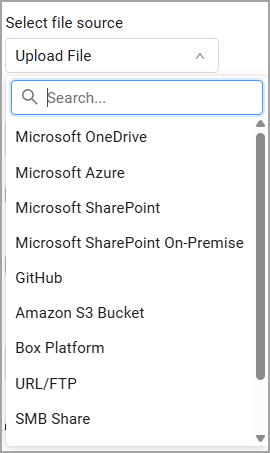
It is possible to configure the CSV adapter to fetch files from various storage places including: Microsoft OneDrive, Azure, Amazon S3, and more. See File Sources for the full list.
The CSV adapter parameters and functionality are common to all adapters that import files:
- CSV - imports .csv files.
- JSON - imports .json files.
- Custom Files - imports .csv, .json, .txt and .xml files.
- F-Secure Policy Manager - imports .csv files.
- Forcepoint Web Security Endpoint CSV File - imports .csv files.
- L0phtCrack 7 - imports .csv files.
- Masscan - imports .json files.
- Nmap Security Scanner - imports .xml files.
- Tenable Nessus CSV File - imports .csv files.
- Varonis CSV - imports .csv files.
- CSV Asset-Specific Adapters - have the same functionality as the general CSV adapters, but each adapter is dedicated to a specific asset type.
Asset Types Fetched
This adapter fetches the following types of assets (other asset types are supported in specific CSV adapters):
- Devices, Users, Aggregated Security Findings, Software, SaaS Applications, Databases, Accounts/Tenants, Business Applications
See the list of fields imported with a CSV file for each asset type.
APIs
When uploading files from Microsoft OneDrive, Axonius uses the List FIles Shared With Me - OneDrive API - OneDrive dev center.
Example CSV File
For an example of a CSV file, download the following zipped file: (https://raw.githubusercontent.com/Axonius/ax-docs-pub/refs/heads/main/Files/CSVExamples.zip)
Connection Parameters
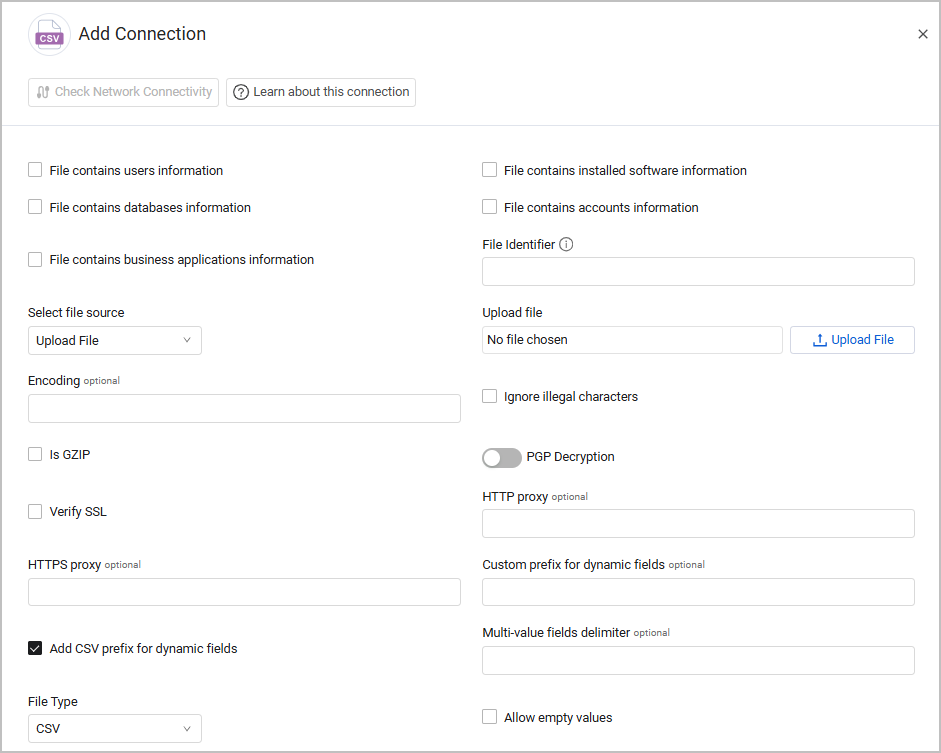
- File contains users information - Select this option to imports the file as a list of users instead of devices. See the list of fields imported with a CSV file for fields required in a Users Information File.
- File contains installed software information - Select this option to import the file as an installed software list instead of devices. See the list of fields imported with a CSV file for fields required in a Software Applications File.
- File contains database information - Select this option to import the file as a list of databases instead of devices. See the list of fields imported with a CSV file for fields required in a Databases File.
- File contains accounts information - Select this option to import the file as a list of accounts instead of devices. See the list of fields imported with a CSV file for fields required in an Accounts File.
- File Identifier (required) - Provide a unique name for the adapter connection. The value supplied here is populated in the File name field for the data supplied by a specific adapter connection.
Note
The specified File Name is not required to be the actual imported file name. This field is an identifier for use in the Query Wizard.
- Select file source - The CSV adapter supports upload of files from a variety of file sources. The parameters you need to enter change according to the file source that you select. The default is Upload File. Refer to File Sources for full details.
- Encoding (optional) - Specify a specific file encoding or let Axonius decode it. When you enter an encoding type Axonius tries to decode the CSV file based on the specified file encoding type (for example, utf-8) for this connection. Otherwise Axonius tries to decode the CSV file based on common file encoding types for this connection. Refer to the list of standard, built-in codecs in Python.
Note
Base64 encoding type is also supported for this adapter.
- Ignore illegal characters - Select this option to ignore illegal characters during the data import. An illegal character is any character that cannot be translated in the specified file encoding. If you do not select this option, and an illegal character is found, the entire data import fails.
- IS GZIP - Mark whether this file is a compressed GZIP file or not. If it's GZIP, the adapter will unzip the file before parsing it.
- Enable PGP Decryption (optional, default: disabled) - Enable this option to decrypt a PGP-encrypted CSV file. When enabled, you need to provide your PGP credentials: PGP Private Key and PGP Private key passphrase (optional).
- Verify SSL - Select whether to verify the SSL certificate of the server against the CA database inside of Axonius. For more details, see SSL Trust & CA Settings.
- HTTPS Proxy (optional) - Connect the adapter to a proxy instead of directly connecting it to the domain.
- HTTPS Proxy User Name (optional) - The user name to use when connecting to the value supplied in Host Name or IP Address via the value supplied in HTTPS Proxy.
- HTTPS Proxy Password (optional) - The password to use when connecting to the server using the HTTPS Proxy.
- Custom prefix for dynamic fields (optional) - Specify a prefix to be added for dynamic fields. A dynamic field refers to any field that is not part of an asset default field. Adding a prefix to such fields can help you identify them, so that the dynamic field format is
{"CSV"}_{"custom prefix"}_{fieldname}. - Add CSV prefix for dynamic fields (optional, default: enabled) - When enabled, the
CSVprefix is added to dynamic fields by default, as demonstrated above. Disable this to remove theCSVprefix from dynamic fields, so that the dynamic field format is{"custom prefix"}_{fieldname}.
Note
If you do not provide any custom prefix to dynamic fields AND Add CSV prefix for dynamic fields is disabled, the dynamic field format is simply
{fieldname}.
- Multi-value fields delimiter (optional) - Specify a delimiter to separate between values within the same field in the imported CSV file. When you specify a delimiter Axonius considers fields that contain the specified delimiter as multi-value fields. For example, ';'. Otherwise Axonius considers all imported fields as single-value fields.
- File Type - Select the type of file uploaded, either CSV, or Excel Spreadsheet. When you select "Excel Spreadsheet", the adapter supports .xls , and.xlsx files, and pulls in the entirety of the first Worksheet as if it were a CSV table. Functionality for tables uploaded from Excel is the same as for CSV files.
- Allow empty values - Select this option to allow the system to support assets with empty fields. If an asset was created with a field that contained a value, when the CSV file subsequently contains an empty field with the same name, the device or user asset will display that field without a value in it.
To learn more about common adapter connection parameters and buttons, see Adding a New Adapter Connection.
File Sources
The CSV adapter supports upload of files from a variety of file sources. See File Sources for the a detailed list.
Note
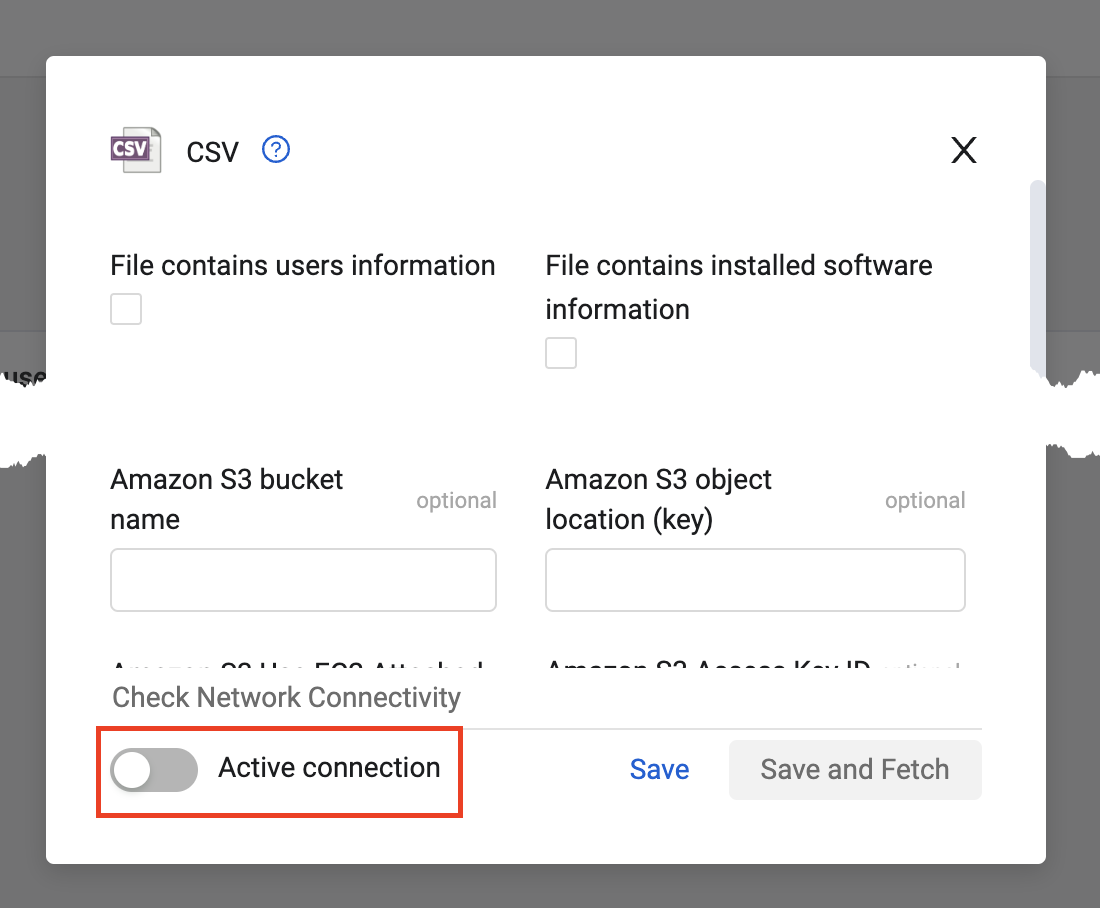
If you are uploading a file from an online storage location and want to use it only for custom enrichment, you must disable the Active connection setting on the CSV adapter connection. In this case, the CSV adapter connection will not fetch new assets.
Advanced Settings
Note
Advanced settings can either apply to all connections for this adapter, or to a specific connection. Refer to Advanced Configuration for Adapters.
- Set Time Zone - Set the time zone of date fields fetched with this adapter. Default is UTC.
- Use fetch time for Last Seen - Select this option to set that all entities (devices and users) fetched by this adapter have their Last Seen set to the time the entity was fetched (fetch_time). When you choose this option, the system does not look in the CSV file for a date and only uses the value set here.
- Date Format - Select the format you want the date to be displayed in. You can choose between "Automatically Identify" (the system will automatically set the format), "DD/MM/YYYY", or “MM/DD/YYYY“.
- Additional primary keys for software files - Enter additional primary keys to use when correlating installed software CSV files. By default, only "hostname" is used as a primary key. Contact Axonius support before you use this option.
- Do not add filename to entity IDs - By default Axonius adds the filename to the ID of the entities created by the CSV file (device ID, etc). Select this option to not add the filename to the entity ID.
- Parse double quotes as escaping - Some CSV formats use double quotes as escaping for a single " sign. Select this option to explicitly parse double quotes as escaping, to prevent errors that might occur by incorrect dynamic parsing of double quotes.
- Force fields to be strings - Select this option to add names of non-string fields dynamically created by the adapter, and force them to be strings instead of their original field type.
- Parse entity fields dynamically - This setting is enabled by default so that the adapter dynamically parses all of the fields of the entity fetched. Unselect to disable this setting.
- Enable Custom Parsing - Enable this option to define how to parse specific fields from the raw data fetched. You can choose to parse the data into an already existing field, or create a new one. See Adapter Custom Parsing for more information.
Note
For details on general advanced settings under the Adapter Configuration tab, see Adapter Advanced Settings.
Updated 15 days ago