
TeamViewer
TeamViewer is remote access and remote control computer software, allowing maintenance of computers and other devices.
Types of Assets Fetched
This adapter fetches the following types of assets:
- Devices
- Users
Creating the Token in TeamViewer
Follow these steps to generate a Script Token in TeamViewer to configure the adapter. Refer to TeamViewer API Guide for full details.
1. Generate the Script Token in TeamViewer
-
Log in to the TeamViewer Management Console.
-
Click on your Profile Name/Avatar in the top-right corner and select Edit profile.
-
In the sidebar, navigate to Script tokens (or Apps in some versions).
-
Click Add token (or Create script token).
-
Name: Enter a descriptive name, e.g.,
Axonius-Integration. -
Permissions: You must select the following scopes:
- Account Management: View account data
- User Management: View users
- Computers & Contacts: View entries
-
Click Save.
-
CRITICAL: Copy the generated token string immediately. TeamViewer will not show it again once you close the window.
Parameters
-
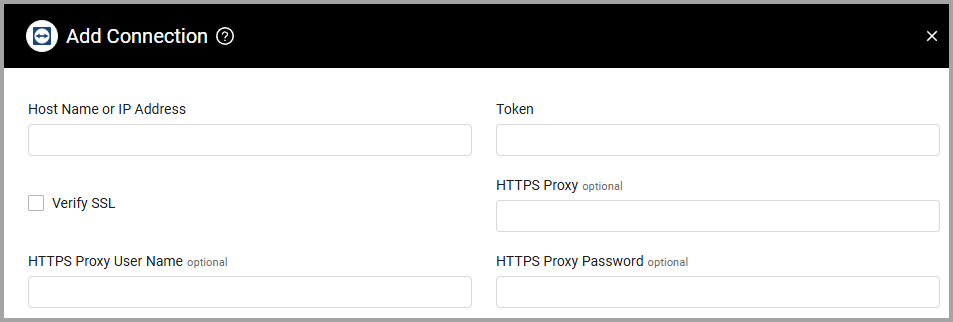
Host Name or IP Address (required) - The hostname or IP address of the TeamViewer server. To work with the TeamViewer Cloud Hosted Application use webapi.teamviewer.com as the Host Name.
-
Token (required) - An access token associated with a TeamViewer script that has the Required Permissions to fetch assets.
-
Verify SSL - Select whether to verify the SSL certificate of the server against the CA database inside of Axonius. For more details, see SSL Trust & CA Settings.
-
HTTPS Proxy (optional) - Connect the adapter to a proxy instead of directly connecting it to the domain.
-
HTTPS Proxy User Name (optional) - The user name to use when connecting to the value supplied in Host Name or IP Address via the value supplied in HTTPS Proxy.
-
HTTPS Proxy Password (optional) - The password to use when connecting to the server using the HTTPS Proxy.
To learn more about common adapter connection parameters and buttons, see Adding a New Adapter Connection.
Advanced Settings
Note
Advanced settings can either apply to all connections for this adapter, or to a specific connection. Refer to Advanced Configuration for Adapters.
- Fetch managed groups' devices - Select this option to fetch devices assigned to all groups.
Note
To learn more about Adapter Configuration tab advanced settings, see Adapter Advanced Settings.
APIs
Axonius uses the:
The adapter should reach the following endpoints:
Required Permissions
The value supplied in Token must be associated with one of the following product plans that have permissions to read user information:
- Business
- Premium
- Corporate
- Tensor
The following permissions are required:
- Account Management
>View Account Data - User Management
>View Users - Computer & Contacts
>View Entries
Supported From Version
Supported from Axonius version 4.5
Updated 4 months ago