
Netdisco
Netdisco is a web-based network management tool designed for network administrators.
Asset Types Fetched
 Devices | Network Devices
Before You Begin
Ports
- TCP port 80/443
Authentication Method
User Name and Password or API Key
APIs
Axonius uses the Netdisco API.
Permissions
The following permissions are required:
The value supplied in User Name must have permissions to request basic HTTP information.
Supported From Version
Supported from Axonius version 4.5
Setting Up Netdisco to Work with Axonius
For more information, see Netdisco API Client Authentication and Netdisco Configuration.
Connecting the Adapter in Axonius
Navigate to the Adapters page, search for Netdisco, and click on the adapter tile.
Click Add Connection.
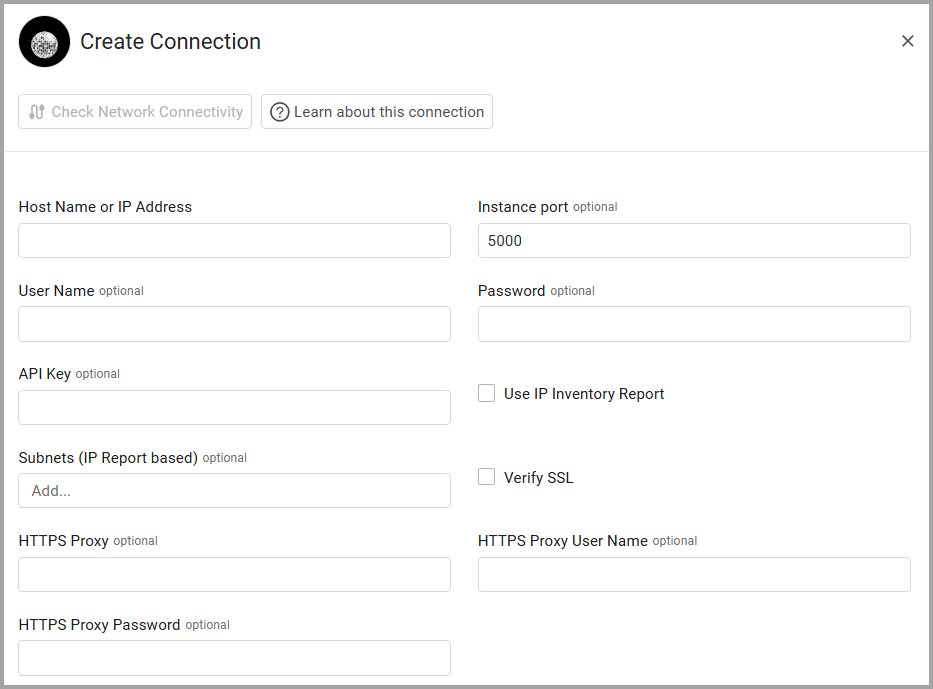
To connect the adapter in Axonius, provide the following parameters:
Required Parameters
-
Host Name or IP Address - The hostname or IP address of the Netdisco server, such as
https://netdisco.internal.example.com. -
Select either of the Authentication Methods
- User Name and Password - The credentials for a user account that has the permissions to fetch assets.
API Key - An API Key associated with a user account that has permissions to fetch assets.
Optional Parameters
-
Instance port (default: 5000) - The port used for the instance.
-
Use IP Inventory Report (default: false) - Select whether to use the IP Inventory Report, which lists IP addresses in the subnet specified in the Subnet (IP Report based) parameter.
-
Subnets (IP Report based) (default: empty) - Specify the subnets (such as 172.17.0.0/16) that you want to use for the IP Inventory Report.
-
Verify SSL - Select whether to verify the SSL certificate of the server against the CA database inside of Axonius. For more details, see SSL Trust & CA Settings.
-
HTTPS Proxy - Connect the adapter to a proxy instead of directly connecting it to the domain.
-
HTTPS Proxy User Name - The user name to use when connecting to the value supplied in Host Name or IP Address via the value supplied in HTTPS Proxy.
-
HTTPS Proxy Password - The password to use when connecting to the server using the HTTPS Proxy.
-
Select Gateway – Select the Axonius Gateway to use when connecting adapters whose sources are only accessible by an internal network and not from the primary Axonius instance, which may be an Axonius-hosted (SaaS) instance or Customer-hosted (on-premises / private cloud). To use this option, you need to set up an Axonius Gateway.
To learn more about common adapter connection parameters and buttons, see Adding a New Adapter Connection.
Advanced Settings
Note:
Advanced settings can either apply to all connections for this adapter, or to a specific connection. Refer to Advanced Configuration for Adapters.
To learn more about Adapter Configuration tab advanced settings, see Adapter Advanced Settings.
-
Merge assets with the same hostname (Netbios/DNS) - When assets share the same hostname, select this option to merge them into a single asset so that - XYZ and XYZ will be the same device.
-
Lowercase the hostname (Netbios/DNS) for assets merge - When you choose to merge assets with the same hostname, then select this option to convert the hostnames to lowercase prior to merging so that XYZ and xyz will be the same device and XYZ and XYZ will be the same device too.
-
Enrich device MACs from nodes MACs - Select this option to enrich device MACs addresses from device nodes.
-
Include vendor in OS parsing - Select this option to control whether the vendor field is included when parsing the operating system information for devices.
-
Enable Convert Entities by Filter - Enable this to use the existing ingestion rules schema to create rules for specific devices. Each device matching the rule will be converted to a network device instead of a regular device. Learn about Ingestion Rules.
- Check Enable Converting Device to Network , then select a logical operator (applies to all rules). Then, enter one or more custom ingestion statements.
Updated 6 months ago