
FortiManager
FortiManager is a centralized management platform that provides configuration management, policy provisioning, device monitoring, and firmware management for Fortinet network and security devices, available as both an on-premises deployment and a cloud-hosted service.
The FortiManager adapter provides Axonius with visibility into network and security devices managed through Fortinet's centralized management platform, supporting both on-premises and cloud deployments.
Asset Types Fetched
- Devices, Users, Network/Firewall Rules, Alerts/Incidents, Network Routes, Networks, Network Devices
Data Retrieved through the Adapter
The adapter retrieves information to provide visibility into your publicly accessible assets. The retrieved data for each asset type may include:
- Devices - Data such as centralized configuration, policy provisioning, device monitoring, and firmware management for Fortinet devices.
- Users - Information regarding users managed within the Policy & Objects section.
- Network/Firewall Rules - Detailed firewall policy and object data.
- Alerts/Incidents - Log and report information for security monitoring.
Before You Begin
Required Ports
- TCP Port 443
Authentication Methods
- IAM User Credentials - The adapter authenticates using a Username and Password for an API user account created in the Fortinet Identity and Access Management (IAM) portal.
Required Permissions
The adapter connection requires that the IAM user has at least Read-Only access to the following sections in FortiManager:
- Device Manager - To retrieve information on managed devices.
- Policy & Objects - To retrieve user and firewall policy data.
- Log & Report - To retrieve security alerts and incident logs.
- Administrative Domain Read-Only permissions are needed to fetch assets
APIs
Axonius uses the FortiManager API to retrieve asset data.
Generating FortiManager Credentials
- Log in to the Fortinet IAM portal.
- Create a Permission Profile that grants at least Read-Only access to the relevant Administrative Domains (ADOMs) and specific modules.
- Ensure the profile includes access to Device Management, Policy & Objects, and Log & Report.
- Create an IAM API user and assign it to the Permission Profile.
- Record the Username and Password for use in the Axonius connection.
- From FortiManager 7.2 bearer token authentication is supported. If you are using this version follow the instructions in the FortiManager Documentation to create an API Key. Copy the key after you created it.
Supported from Version
This adapter is supported from Axonius version 8.0.12.
Connection Parameters
To connect the adapter in Axonius, provide the following parameters.
Required Parameters
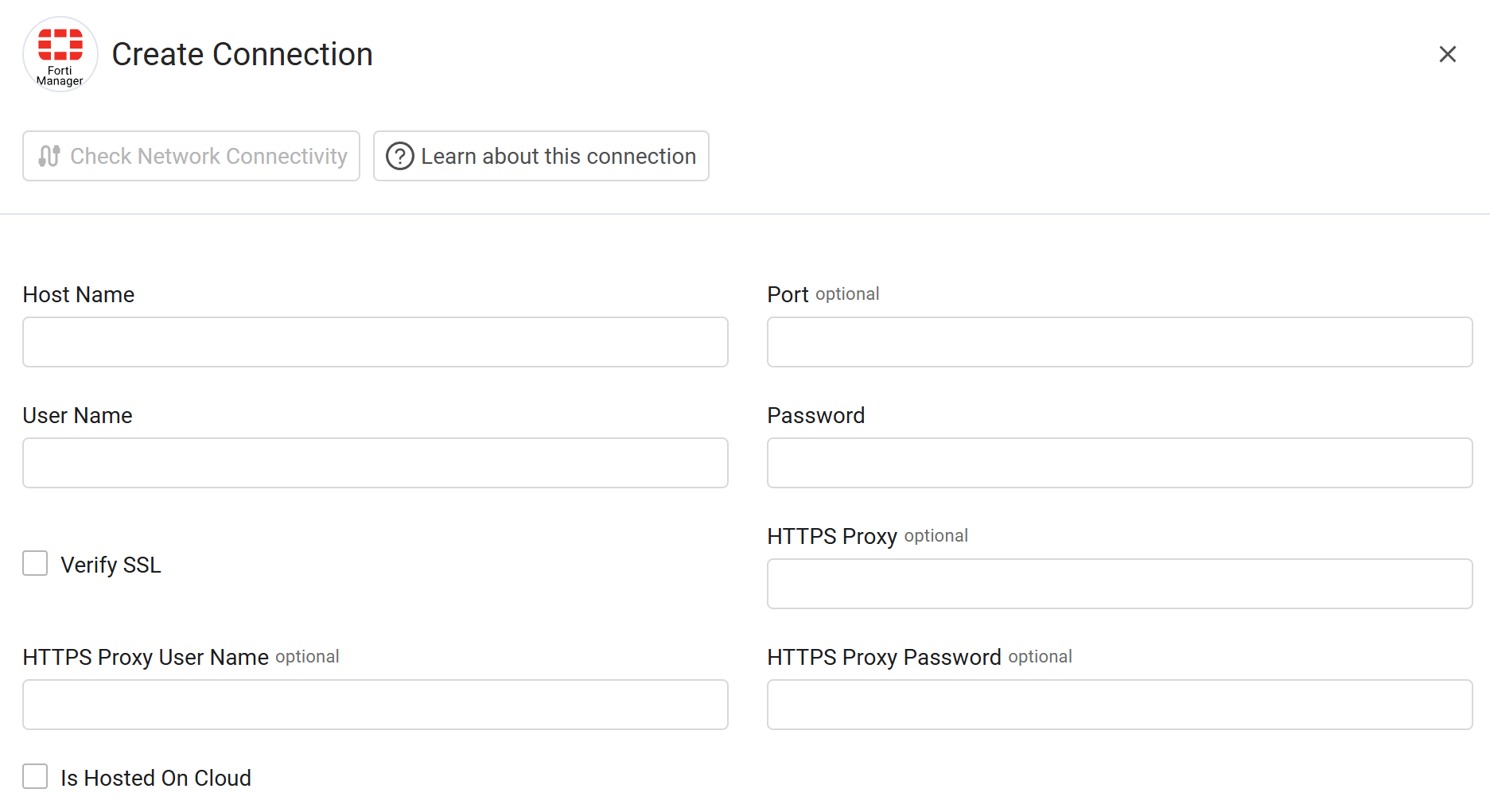
- Host Name - Enter the hostname or IP address of the FortiManager server.
- User Name - Enter the IAM username.
- Password - Enter the password associated with the IAM user.
- API Key - Enter your FortiManager API Key. From FortiManager 7.2 bearer token authentication is supported. If you are using this version of FortiManager, enter an API key.
Optional Parameters
- Port - Enter the specific port for the connection if different from the default.
- Verify SSL - Select whether to verify the SSL certificate of the server against the CA database inside of Axonius. For more details, see SSL Trust & CA Settings.
- HTTPS Proxy - Enter an HTTPS proxy address to connect the adapter to a proxy instead of directly connecting it to the domain.
- HTTPS Proxy User Name - Enter the user name to use when connecting to the value supplied in Host Name or IP Address via the value supplied in HTTPS Proxy.
- HTTPS Proxy Password - Enter the password to use when connecting to the server using the HTTPS Proxy.
- Is Hosted On Cloud - Enable this option if the adapter should connect to FortiManager via FortiCloud hosting.
Advanced Settings
Note
- Advanced settings can apply to either all connections of this adapter, or to a specific connection. For more detailed information, see Advanced Configuration for Adapters.
- For more general information about advanced settings, see Adapter Advanced Settings.
- DHCP lease time (seconds) - Enter the duration in seconds for the DHCP lease tracking. By entering a value in this field, you are instructing the adapter to track the validity of the asset's IP assignment for that specific timeframe. If left empty, the adapter relies on its own default internal logic or the data provided directly by the FortiManager API.
- Interfaces exclude list - Enter specific network interfaces to exclude from the fetch.
- Vmware interfaces exclude list - Enter specific VMware network interfaces to exclude.
- Do not fetch OS Type field (default: false) - Enable this to skip fetching the operating system type for devices.
- Allow IPSEC VPN devices (default: false) - Enable this to include IPSEC VPN devices in the fetch.
- Fetch managed Fortigate devices (default: false) - Enable this to retrieve data for FortiGate devices managed by the console.
- Use Fortigate new OS version parser (default: false) - Enable this to use the updated parsing logic for FortiOS versions.
- Fetch firewall rules (default: true) - Enable this to retrieve firewall policy data.
- Maximum number of chunks - Enter the maximum number of data chunks allowed for the fetch (default: 50).
- Fetch VPN SSL Sessions as Devices (default: false) - Enable this to treat SSL VPN sessions as separate device assets.
- Parse Global Interfaces as Network Interfaces (default: false) - Enable this to map global interface data to standard network interface fields.
- Use fetch time for the "Last Seen" field (default: false) - Enable this to set the "Last Seen" timestamp to the current fetch time.
- Fetch Threat Profiles - Select this option to fetch IPS sensor threat profiles and enrich firewall policies with mitigated CVEs
- Fetch "Where Used" References For NAT Objects - Select this option to fetch "Where Used" relationship data for NAT objects. Note that this type of data is quite a heavy fetch, so enable this setting only when needed.
- Allow Empty Hostname For Monitor Devices - Select this option so that monitor devices without a hostname keep their Asset Name empty instead of falling back to the MAC address. Only affects monitor devices.
Updated 26 days ago