
Viewing Security Findings on Other Assets Pages
Learn how to identify and manage assets affected by specific security findings using contextual navigation options.
To identify and manage assets affected by specific vulnerabilities, use the contextual navigation option from the Security Findings page:
-
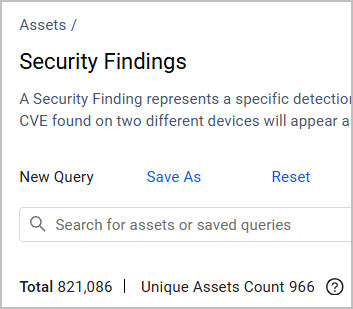
Hover over Unique Assets Count, right above the Security Findings table. This number represents how many assets in total exist with the vulnerabilities that are the results of the current Security Finding query.
Note
The actual number of Unique Assets Count might change after a new discovery cycle, as new vulnerabilities might be detected on new assets.
- A breakdown of all assets with vulnerabilities is displayed, organized by asset type.
- To navigate to the relevant Assets page and view all vulnerabilities within this specific asset type, click the number under the Count column.
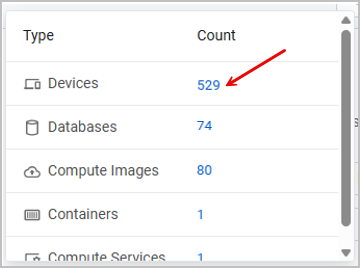
- You are redirected to the relevant Assets page, which opens in a view that is automatically expanded by the following complex fields:
-
When navigating from the Security Findings page to an Assets page: The Assets view is expanded by the Security Findings complex field (formerly Vulnerable Software), containing some of the default Security Findings fields.

-
Only assets associated with the Security Findings query results are displayed, and no other filters or data refinement are applied.
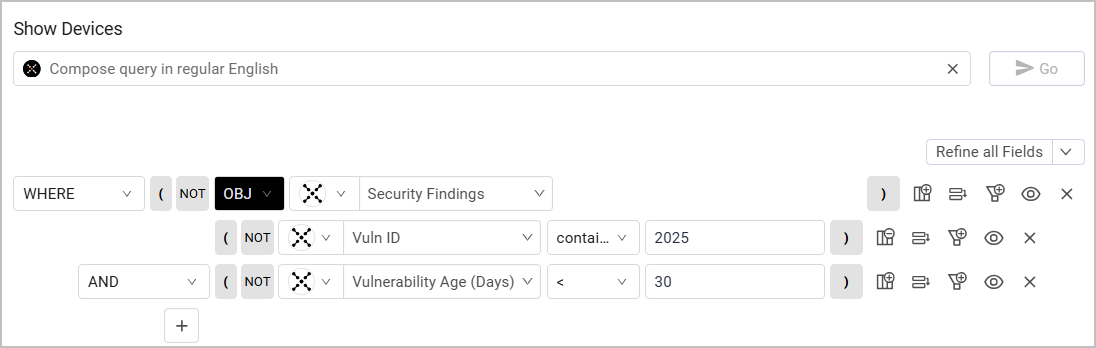
Explore Security Findings in the context of the Assets page to quickly find assets with specific vulnerabilities. A useful tool for that is building asset queries using the Security Findings complex field. For example, this query shows only devices where the Vuln ID contains the string “2025” and the Vulnerability Age is less than 30 days:
Device-Specific Count Fields
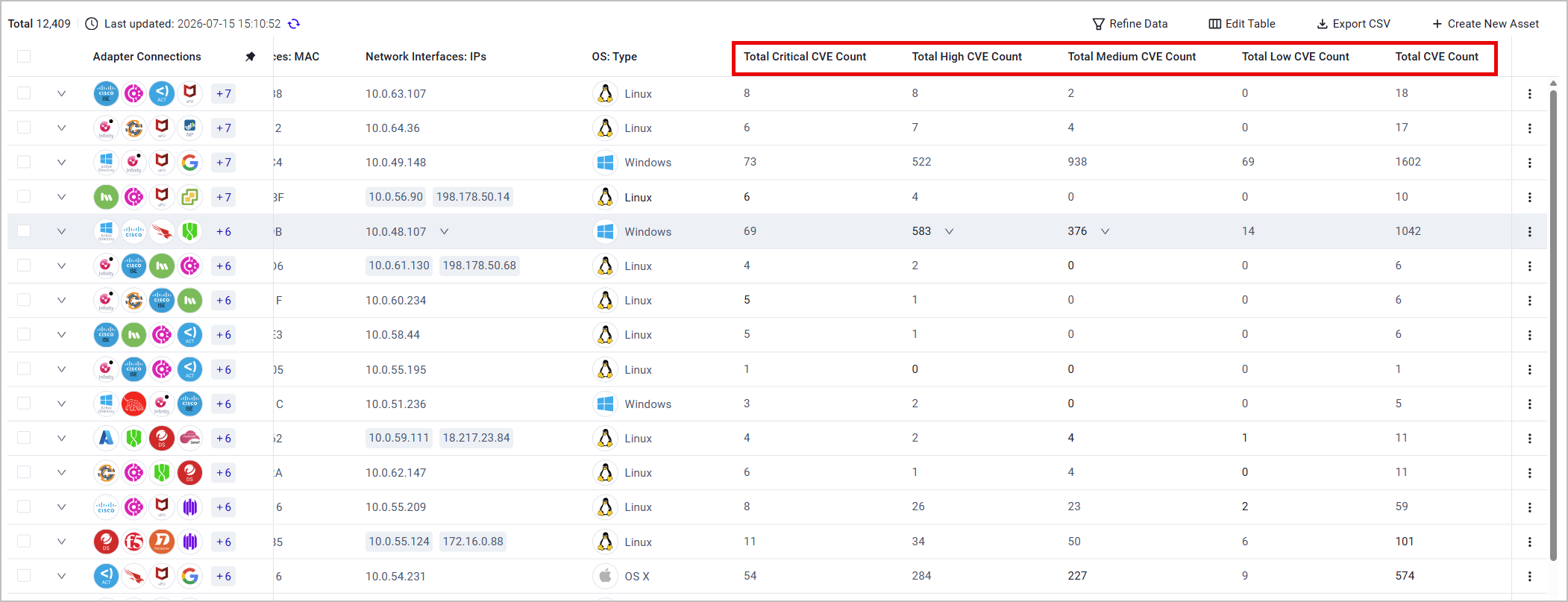
Some count fields are specific to the Devices page in the context of Security Findings. To add them to the Devices table, click Edit Table > Edit Columns and select the relevant fields. Learn more about Setting Page Columns Display.
You can add to the Devices table fields that indicate how many CVEs from each severity exist on the device:
- Total Low CVE Count
- Total Medium CVE Count
- Total High CVE Count
- Total Critical CVE Count
- Total CVE Count (general)
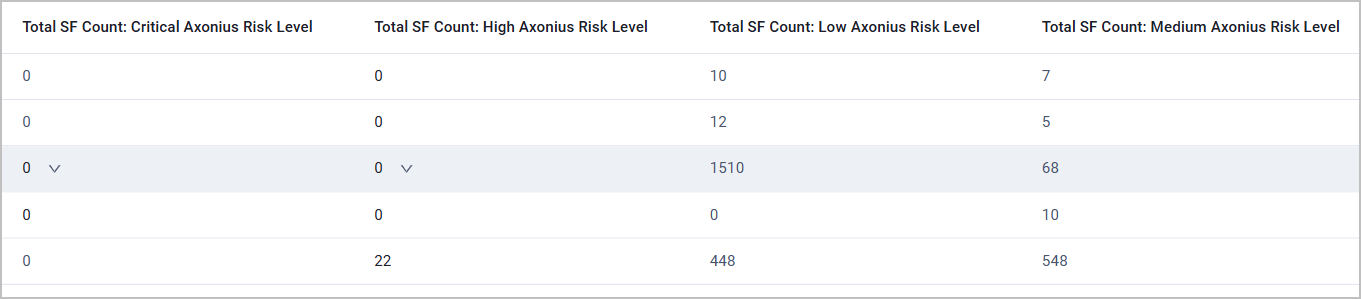
In addition, you can add fields that indicate how many open Security Findings from each Risk Level exist on the device.
A Risk Level is a translation of a Risk Score's numeric value to one of the following strings: Low, Medium, High, or Critical. These values are set explicitly by Axonius and don't originate from other sources such as CVSS or NVD. For example, Axonius' default settings are that Risk Scores between 4 and 6.99 are Medium Risk Level. Learn more about defining Risk Levels.
The relevant fields are as follows (Security Findings are abbreviated to SF):
- Total SF Count: Critical Axonius Risk Level
- Total SF Count: High Axonius Risk Level
- Total SF Count: Medium Axonius Risk Level
- Total SF Count: Low Axonius Risk Level
If a Device has no open Security Findings for a given level, the value is 0.
Use these fields to build queries such as the following example - find devices that have more than 10 Security Findings with a Critical Risk Level:

Updated 2 months ago