
BeyondTrust Privileged Identity Integration
Description of Product Integration
BeyondTrust Privileged Identity (formerly Lieberman RED Identity Management) is a password management solution that helps companies secure, manage, and administer credentials for privileged users and IT vendors.
Axonius uses the Privileged Identity REST API.
To enable fetching credentials from your BeyondTrust Privileged Identity, you need to:
- Install and configure BeyondTrust Privileged Identity.
- Enable and configure the External Password Managers - Enterprise Password Management Settings in Axonius.
- Configure adapter connection credential to fetch passwords from BeyondTrust Privileged Identity.
Enable BeyondTrust Privileged Identity
-
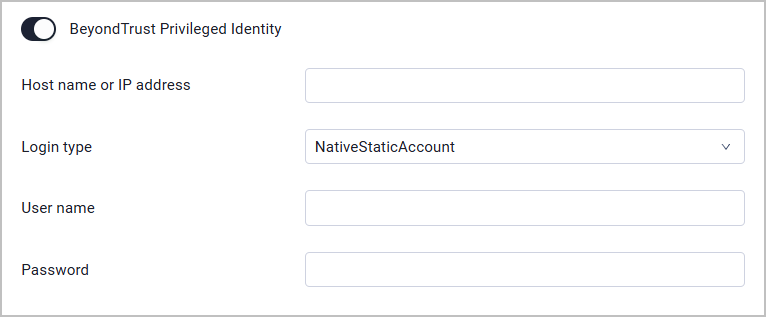
Toggle on BeyondTrust Privileged Identity.
-
Specify the following parameters:
- Host Name or IP Address (required) - The hostname or IP address of the BeyondTrust Privileged Identity server.
- LoginType (required) - The login type of the authentication. Valid values are
NativeStaticAccount(Privileged Identity explicit accounts) orFullyQualifiedAccount. - User Name and Password (required) - The credentials for a user account that has the permissions to fetch assets.
Working with BeyondTrust Privileged Identity
After the BeyondTrust Privileged Identity is enabled in Axonius, a new BeyondTrust Privileged Identity icon will appear when you configure an adapter or Enforcement Action, in the following field types:
- Password fields
- File fields - such as certificates, private keys, or configuration files in JSON/XML format (in adapters that have such fields)
This allows you to enter a password or upload a file manually OR to fetch the secret from BeyondTrust Privileged Identity.
To fetch a password from BeyondTrust Privileged Identity
- In a password field, click the BeyondTrust Privileged Identity icon. If you have configured more than one password manager, click the vault icon
 and select BeyondTrust Privileged Identity from the drop-down. BeyondTrust Privileged Identity password dialog opens.
 - Continue by following steps 2-3 as explained in BeyondTrust Password Safe.
To fetch a file from BeyondTrust Privileged Identity
- In a file field, click the BeyondTrust Privileged Identity icon. If you have configured more than one password manager, click the vault icon and select BeyondTrust Privileged Identity from the drop-down. A BeyondTrust Privileged Identity dialog opens.
- Continue by following steps 2-3 as explained in BeyondTrust Password Safe.
Updated about 1 month ago