
Absolute
Absolute specializes in software to manage and secure Windows computers and Android smartphones.
Asset Types Fetched
- Devices, Software, SaaS Applications
Before You Begin
APIs
Axonius uses the Absolute API v3.
Setting Up Absolute to Work with Axonius
Absolute API requires an authentication token that consists of two parts: token ID and secret key. You need to generate those from the Absolute console, using a custom user role, defined by your organization, or the Guest user role.
For more details on creating a Token ID and a Secret Key, see Create your API token.
Note
The System Administrator of your Absolute console can assign the role.
Connecting the Adapter in Axonius
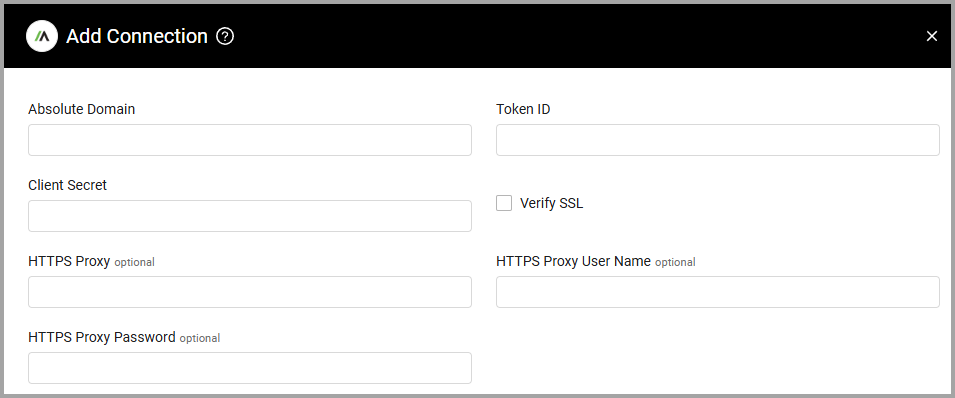
To connect the adapter in Axonius, provide the following parameters:
Required Parameters
- Absolute Domain - Your Absolute API access domain. For a list of possible API access URLs, see API access.
- Token ID and Client Secret - The Absolute API authentication token ID and secret key.
Optional Parameters
- Verify SSL - Select whether to verify the SSL certificate of the server against the CA database inside of Axonius. For more details, see SSL Trust & CA Settings.
- HTTPS Proxy - Connect the adapter to a proxy instead of directly connecting it to the domain.
- HTTPS Proxy User Name - The user name to use when connecting to the value supplied in Host Name or IP Address via the value supplied in HTTPS Proxy.
- HTTPS Proxy Password - The password to use when connecting to the server using the HTTPS Proxy.
To learn more about common adapter connection parameters and buttons, see Adding a New Adapter Connection.
Advanced Settings
Note
Advanced settings can either apply to all connections for this adapter, or to a specific connection. Refer to Advanced Configuration for Adapters.
- Fetch applications - Select whether to fetch device applications from the Absolute server.
- Devices fetched per page (Default: 50) - Enter the maximum number of devices to fetch per paginated API request. The maximum value is 1000.
- Applications fetched per page (Default: 1000) - Enter the maximum number of applications to fetch per paginated API request. The maximum value is 10000.
- Fetch groups - Select this option to fetch groups.
- Fetch only latest installed app version of devices - Select this option to fetch only the latest installed app version of devices.
- Fetch custom data points device fields data - Select this option to fetch all custom data points and their scan results for the device specified.
Note
For details on general advanced settings under the Adapter Configuration tab, see Adapter Advanced Settings.
Troubleshooting
If you're experiencing issues with connectivity, enable Authentication Debugging in the Absolute console on the API Token Management page. After that, repeat the failed API requests to log the details. You can then contact Technical Support with the details collected in the log. Make sure you include the following:
- tokenID
- canonicalRequest
- x-abs-date
- signature
Related Enforcement Actions
- Absolute - Run Script
- Absolute - Unenroll Asset
- Absolute - Update Custom Device Field
- Absolute - Freeze Devices
- Absolute - Unfreeze Devices
Updated 2 months ago