
Sectigo
Sectigo provides digital certificate lifecycle and PKI management. The Sectigo adapter allows you to integrate with Axonius to fetch and monitor certificate inventories, user accounts and devices.
Use Cases the Adapter Solves
-
Certificate Lifecycle Management: Automatically discover and track all SSL/TLS certificates across your infrastructure to monitor expiration dates, identify expired or near-expiration certificates, and ensure compliance with certificate management policies.
-
Access Control Verification: Fetch and manage user accounts and their administrative privileges within Sectigo to audit who has access to certificate management functions and ensure proper access controls.
-
Device Certificate Tracking: Identify all devices with certificates managed through Sectigo, track their certification status, and validate that devices are using valid certificates for secure communications.
Types of Assets Fetched
This adapter fetches the following types of assets:
- Devices, Users, Certificates, Application Settings
Data Retrieved through the Adapter
The following data can be fetched by the adapter:
Devices - fields such as Device name, status, organization ID
Users - fields such as Username, email address, secondary email
Certificates - fields such as Common name, certificate type, backend certification ID
Application Settings - fields such as ACME account configuration (cert validation type, account settings), Azure account delegation mode and authentication settings
Before You Begin
Required Ports
- TCP port 443 (HTTPS)
Authentication Methods
Basic Authentication - The Sectigo adapter uses HTTP Basic Authentication with username and password credentials to authenticate API requests to the Sectigo Certificate Manager server.
APIs
Axonius uses the Sectigo Certificate Manager REST API. The following endpoints are called:
GET /api/ssl/v2- Fetch SSL certificatesGET /api/device/v1- Fetch devicesGET /api/user/v1- Fetch usersGET api/acme/v2/account- ACME account configurationGET api/acme/v1/server- ACME server settingsGET api/azure/v1/accounts- Azure account configurationGET api/discovery/v1/bucket/|bucket_id|- Discovery bucket settingsGET api/connector/v1/dns- DNS connector configurationGET api/agent/v1/ms/|agent_id|- Microsoft agent settingsGET api/agent/v1/network/|agent_id|- Network agent configurationGET api/person/v2User settings and validation typesGET api/profile/v1- Certificate profile settings
Required Permissions
The following permissions are required:
Administrator Role (Recommended)
- API access enabled on user account
- Permission to read certificate data
- Permission to read user account information
- Permission to read device information
- Permission to read application settings and security policies (for Application Settings feature)
- In order to fetch Application Settings the following permissions are required:
-
The account needs the MRAO role:
MRAO (Master Registration Authority Officer): This role grants full, unrestricted administrative control and visibility across all organizations and departments in the enterprise account.
Note on lesser roles: While RAO (Registration Authority Officer) or DRAO (Department Registration Authority Officer) roles can technically reach some of these endpoints, their responses will be tightly scoped to their assigned departments. They will likely return 403 Forbidden errors for global endpoints.
Admin Account Type
The user profile in the SCM Settings must be configured for programmatic access: Admin Type: Must be set to API (or Standard).
-
Supported From Version
Supported from Axonius version 4.5
Connecting the Adapter in Axonius
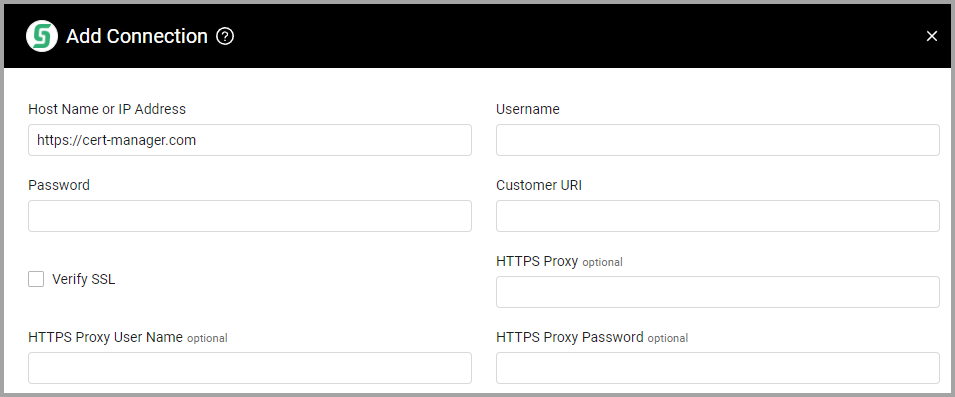
Navigate to the Adapters page, search for Sectigo, and click on the adapter tile. Click Add Connection.
To connect the adapter in Axonius, provide the following parameters:
Required Parameters
-
Host Name or IP Address (required, default for cloud instances: https://cert-manager.com) - The hostname or IP address of the Sectigo server.
-
Username and Password (required) - The credentials for a user account that has the permissions to fetch assets.
-
Customer URI (required) - Specify the identifier of the resource to use, this must be entered in lower case.
-
Verify SSL - Select whether to verify the SSL certificate of the server against the CA database inside of Axonius. For more details, see SSL Trust & CA Settings.
-
HTTPS Proxy (optional) - Connect the adapter to a proxy instead of directly connecting it to the domain.
-
HTTPS Proxy User Name (optional) - The user name to use when connecting to the value supplied in Host Name or IP Address via the value supplied in HTTPS Proxy.
-
HTTPS Proxy Password (optional) - The password to use when connecting to the server using the HTTPS Proxy.
To learn more about common adapter connection parameters and buttons, see Adding a New Adapter Connection.
Advanced Settings
NoteAdvanced settings can either apply to all connections for this adapter, or to a specific connection. Refer to Advanced Configuration for Adapters.
- Async Chunks (required, default: 50) - Specify the number of parallel requests all connections for this adapter will send to the Sectigo server in parallel at any given point.
- Page size (required, default: 100) - Specify the number of entities to fetch per page. Reduce this value if connections are timing out or being dropped by the Sectigo server.
- Fetch Administrator users - Select this option to fetch Administrator users in addition to regular users.
- Fetch Users (required, default: true) - By default Axonius fetches users. Clear this option to not fetch users.
- Fetch device certificates - Select this option to fetch device certificates.
- Fetch application settings - Select this option to fetch application settings.
- Fetch certificate deployment locations - Select this option to fetch deployment locations for each SSL certificate. Requires the v2 API and adds one request per certificate.
- Use legacy SSL certificates API (v1) - Select this option to fetch SSL certificates from the deprecated
/api/ssl/v1endpoints instead of/api/ssl/v2.
NoteTo learn more about Adapter Configuration tab advanced settings, see Adapter Advanced Settings.
Related Enforcement Actions
Updated 3 days ago