
Illumio Core
Illumio Core is a security platform that provides micro-segmentation to prevent unauthorized lateral movement within networks.
Use Cases the Adapter Solves
- Workload and VEN Asset Discovery: Automatically inventory all VEN-managed workloads, network devices, and container clusters in Illumio Core, maintaining a complete and up-to-date asset register across your segmented environment.
- Security Policy and Segmentation Validation: Correlate fetched rulesets and firewall policies with the rest of your asset inventory to verify that micro-segmentation policies are applied correctly and no unauthorized traffic flows are permitted.
- Application Setting Compliance Monitoring: Continuously monitor Illumio's application-level security settings—including password policy, SAML authentication configuration, and workload timeout thresholds—against benchmarks such as CIS and NIST.
Types of Assets Fetched
This adapter fetches the following types of assets:
- Devices, Users, Load Balancers, Containers, Network/Firewall Rules, Network Devices, Alerts/Incidents, Application Settings
Data Retrieved through the Adapter
Devices – cloud ID, cloud provider, enforcement mode, labels
Users – full name, username, account status (locked), last login
Containers – name, namespace
Alerts/Incidents – event type, severity, status, timestamp
Application Settings – authentication type, password policy settings, SAML configuration, firewall settings
Authentication Methods
The adapter authenticates using HTTP Basic Authentication. The Authentication User Name and API Secret are sent as credentials with each request, along with an Authorization: Token token={api_secret} header.
APIs
Axonius uses the Illumio Core 24.2.10 REST API. The following endpoints are called:
Devices
GET api/v2/orgs/{org_id}/vens- Fetch VEN-managed devicesGET api/v2/orgs/{org_id}/workloads- Fetch workloadsGET api/v2/orgs/{org_id}/workloads/{workload_id}- Fetch individual workload detailsGET api/v2/orgs/{org_id}/vens/{ven_id}/compatibility_report- Fetch VEN compatibility reports
Labels and Rulesets
GET api/v2/orgs/{org_id}/labels- Fetch labelsGET api/v2/orgs/{org_id}/sec_policy/active/rule_sets- Fetch active rulesets (Network/Firewall Rules)
Additional Asset Types (optional)
GET api/v2/users- Fetch usersGET api/v2/orgs/{org_id}/events- Fetch events (Alerts/Incidents)GET api/v2/orgs/{org_id}/container_clusters- Fetch container clustersGET api/v2/orgs/{org_id}/container_clusters/{id}/container_workload_profiles- Fetch containersGET api/v2/orgs/{org_id}/sec_policy- Fetch security policy versionsGET api/v2/orgs/{org_id}/sec_policy/{version}/firewall_settings- Fetch firewall policy settingsGET api/v2/orgs/{org_id}/slbs- Fetch server load balancersGET api/v2/orgs/{org_id}/network_devices- Fetch network devices
Application Settings
GET api/v2/authentication_settings- Fetch authentication settingsGET api/v2/authentication_settings/password_policy- Fetch password policyGET api/v2/authentication_settings/saml_configs- Fetch SAML configurationsGET api/v2/authentication_settings/saml_configs/{uuid}- Fetch individual SAML configurationGET api/v2/orgs/{org_id}/settings- Fetch organization settingsGET api/v2/orgs/{org_id}/settings/events- Fetch event settingsGET api/v2/orgs/{org_id}/settings/reports- Fetch report settingsGET api/v2/orgs/{org_id}/settings/trusted_proxy_ips- Fetch trusted proxy IP settingsGET api/v2/orgs/{org_id}/settings/workloads- Fetch workload settingsGET api/v2/orgs/{org_id}/sec_policy/{pversion}/firewall_settings- Fetch firewall settings
Required Ports
Axonius must be able to communicate with the value supplied in Host Name or IP Address via the following ports:
- TCP port 8443
Required Permissions
The value supplied in Authentication User Name and API Secret must have at least read-only role.
That user can have also one of the following Roles: Organization owner, Administrator.
To generate Authentication User Name, API Secret and Organization ID:
-
Log into the Illumio PCE web console.
-
Click your name in the top right corner:
.png)
-
Click My API Keys in the drop-down list.
-
Click +Add in the window that appears:
.png)
-
Fill in the Name (mandatory) and Description (optional).
-
Click Save.
-
Click Show Credentials:
.png)
-
Copy and paste this information into a safe place. There is no way to
retrieve it once you close this screen. -
Optionally, you may choose to download the credentials into a file by
clicking on Download Credentials. Keep this file in a very safe place.
Parameters
Required Parameters
-
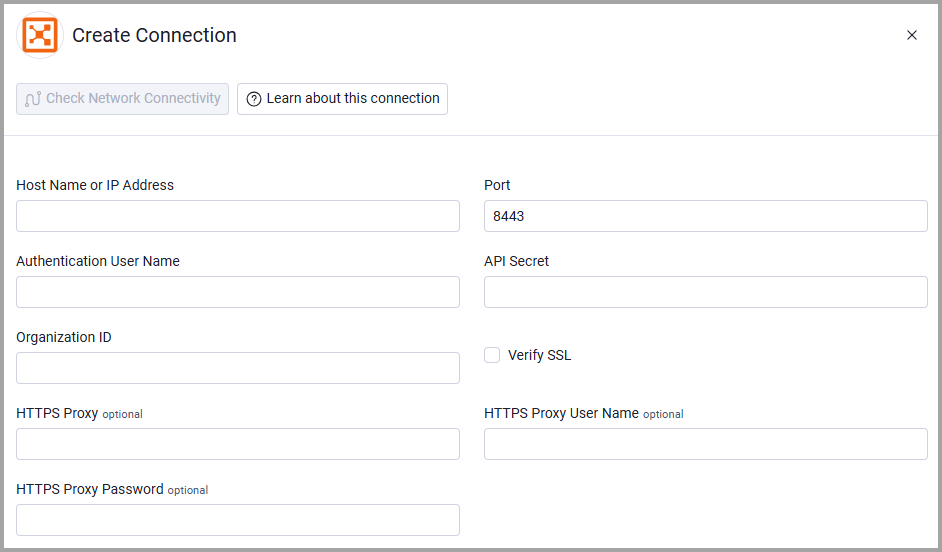
Host Name or IP Address (required) - The hostname or IP address of the Illumio Core server that Axonius can communicate with via the Required Ports.
-
Port (required, default: 8443) - The port used to connect to the Illumio Core server.
-
Authentication User Name (required) - The credentials for a user account that has the Required Permissions to fetch assets. This is a randomized name generated when a user creates an API key.
-
API Secret (required) - An API Key associated with a user account that has the Required Permissions to fetch assets.
-
Organization ID (required) - Auto generated when the API Secret is created.
-
Verify SSL (required) - Select whether to verify the SSL certificate of the server against the CA database inside of Axonius. For more details, see SSL Trust & CA Settings.
Optional Parameters
-
HTTPS Proxy (optional) - Connect the adapter to a proxy instead of directly connecting it to the domain.
-
HTTPS Proxy User Name (optional) - The user name to use when connecting to the value supplied in Host Name or IP Address via the value supplied in HTTPS Proxy.
-
HTTPS Proxy Password (optional) - The password to use when connecting to the server using the HTTPS Proxy.
To learn more about common adapter connection parameters and buttons, see Adding a New Adapter Connection.
Advanced Settings
Note
Advanced settings can either apply to all connections for this adapter, or to a specific connection. Refer to Advanced Configuration for Adapters.
- Fetch workloads (default: true) - Clear this option to stop fetching devices of the type "Workload"
- Additional Assets to Fetch - From the dropdown, select one or more additional asset types to fetch.
- Max Retries for Async API (default: 10) - Set the maximum times to check for task completion before timing out.
- Default Wait Time Between Retries (seconds) (default 5) - Set how long to wait in seconds between checks when the adapter is waiting for a task to complete. If the server doesn't specify a wait time, this default will be used.
- Fetch Compatibility Reports for Idle Workloads - Select this option to fetch compatibility report data.
Note
To learn more about Adapter Configuration tab advanced settings, see Adapter Advanced Settings.
Related Enforcement Actions
- Illumio - Create Workload
- Illumio - Delete Workload
- Illumio - Unpair VEN from Workload
- Illumio Update Workload
Updated 6 days ago