---
updatedAt: 2026-10-14T10:51:01.000Z
agentTools:
projectIndex: https://docs.axonius.com/llms.txt
---
# CrowdStrike Falcon Identity Protection (Preempt)
CrowdStrike Falcon Identity Protection (formerly Preempt) lets organizations reduce user risk on their attack surface and preempt threats in real-time with conditional access. It continuously analyzes, adapts and responds to threats based on identity, behavior, and risk to resolve insider threats and targeted attacks.
Note
It is possible to connect using either CrowdStrike or Preempt credentials.
## Asset Types Fetched
This adapter fetches the following types of assets:
* Devices, Users
## Before You Begin
### Authentication Methods
You can connect the adapter using either a Preempt API Key **OR** Client ID and Client Secret (CrowdStrike OAuth2).
### Required Permissions
If you authenticate with an API Key, the supplied value must be associated with the following credentials:
| Credential | Permission |
| ----------------------------------------- | ---------- |
| Identity Protection Assessment | Read |
| Identity Protection Detections | Read |
| Identity Protection Enforcement | Read |
| Identity Protection Entities | Read |
| Identity Protection GraphQL | Write |
| Identity Protection Health | Read |
| Identity Protection on-premise enablement | Read |
| Identity Protection Timeline | Read |
## Connecting the Adapter in Axonius
### Required Parameters
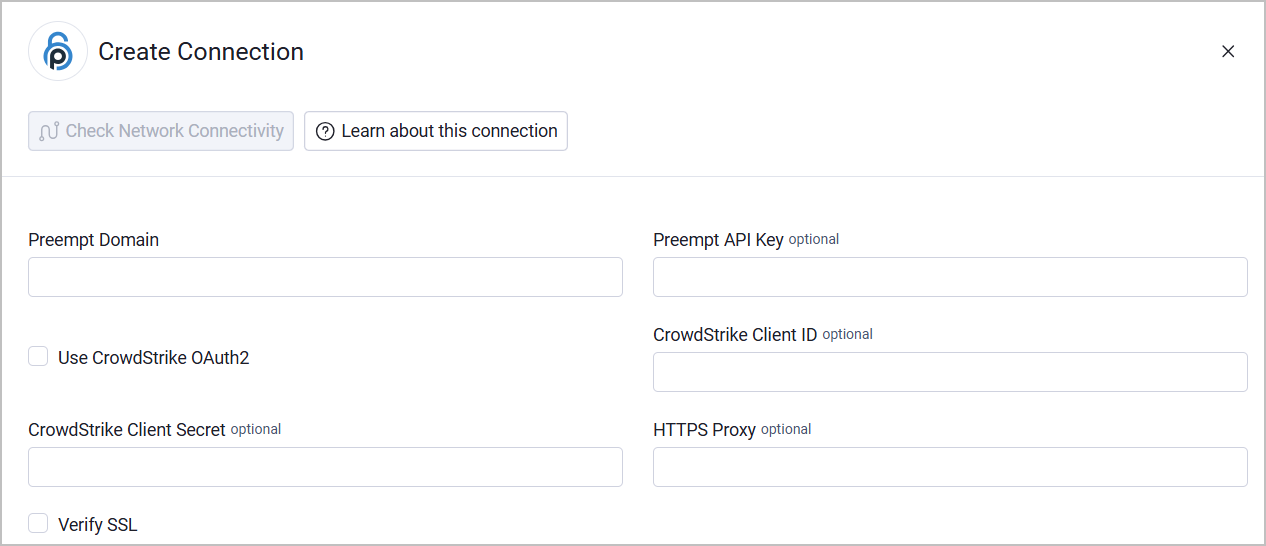
1. **Preempt Domain** - The hostname of the Preempt server.
**When authenticating with an API Key:**
1. **Preempt API Key** - An API Key created in the Preempt console. In the **Administration** page, select **Connectors** `>` **API Keys** tab. Select **API Token** and then generate and copy an API key.
**When authenticating with CrowdStrike OAuth2:**
1. **Use CrowdStrike OAuth2** - Select to authenticate using CrowdStrike OAuth2, in this case use the **CrowdStrike Client ID** and **Secret**.
2. **CrowdStrike Client ID** and **CrowdStrike Client Secret** - Credentials for a CrowdStrike account. For more information, see [CrowdStrike Falcon Required Permissions](https://docs.axonius.com/axonius-help-docs/docs/crowdstrike-falcon#required-permissions).
### Optional Parameters
1. **HTTPS Proxy** - Connect the adapter to a proxy instead of directly connecting it to the domain.
2. **Verify SSL** - Select whether to verify the SSL certificate of the server against the CA database inside of Axonius. For more details, see [SSL Trust & CA Settings](https://docs.axonius.com/axonius-help-docs/docs/certificate-settings#ssl-trust-ca-settings).
To learn more about common adapter connection parameters and buttons, see [Adding a New Adapter Connection](https://docs.axonius.com/axonius-help-docs/docs/adding-a-new-adapter-connection).
## Advanced Settings
Note
Advanced settings can either apply to all connections for this adapter, or to a specific connection. Refer to [Advanced Configuration for Adapters](https://docs.axonius.com/axonius-help-docs/docs/advanced-configuration-for-adapters).
1. **Do not fetch devices without 'Last Seen** *(default: true)* - Select whether to exclude devices that do not have \`last seen' indication.
2. **Do not fetch devices without hostname** *(default: true)* - Select whether to exclude devices that do not have a hostname.
3. **Do not fetch devices with IP as hostname** - Select this option to exclude devices that have IPs as Hostname.
4. **Only fetch active Users** - Select this option to only fetch users who aren't archived.
5. **Ignore Programmatic users for device ownership** - Select this option to ignore the owner listed as device owner if it is a service account.
6. **Filter by Domain** - Toggle on filter by domain.
7. **Domain list** - Enter a comma-separated list of domains to filter by.
8. **Rename risk factors** - Select this option to rename risk factors.
9. **Exclude devices with UNMANAGED\_HOST risk status** - Select this option to exclude devices with the risk factor type of 'UNMANAGED\_HOST'.
10. **Fetch user authorizees** - Select this option to fetch user authorizees.
11. **Fetch duplicate password accounts** - Select this option to fetch duplicate password accounts.