---
updatedAt: 2026-10-13T14:48:34.000Z
agentTools:
projectIndex: https://docs.axonius.com/llms.txt
---
# Google Security Operations SIEM
Google Security Operations SIEM is designed for enterprises to privately retain, analyze, and search security and network telemetry.
### Asset Types Fetched
* Devices
## Before You Begin
**Ports**
* TCP port 80/443
**Authentication Method**
* JSON Key
### APIs
Axonius uses [Chronicle Search API | Google Security Operations | Google Cloud](https://cloud.google.com/chronicle/docs/reference/search-api#listassets) for the Devices endpoint and Authentication.
### Permissions
The value supplied in [JSON Key pair](#required-parameters) must be associated with credentials that have Read permissions to fetch assets.
#### Supported From Version
Supported from Axonius version 5.0
## Connecting the Adapter in Axonius
To connect the adapter in Axonius, provide the following parameters:
### Required Parameters
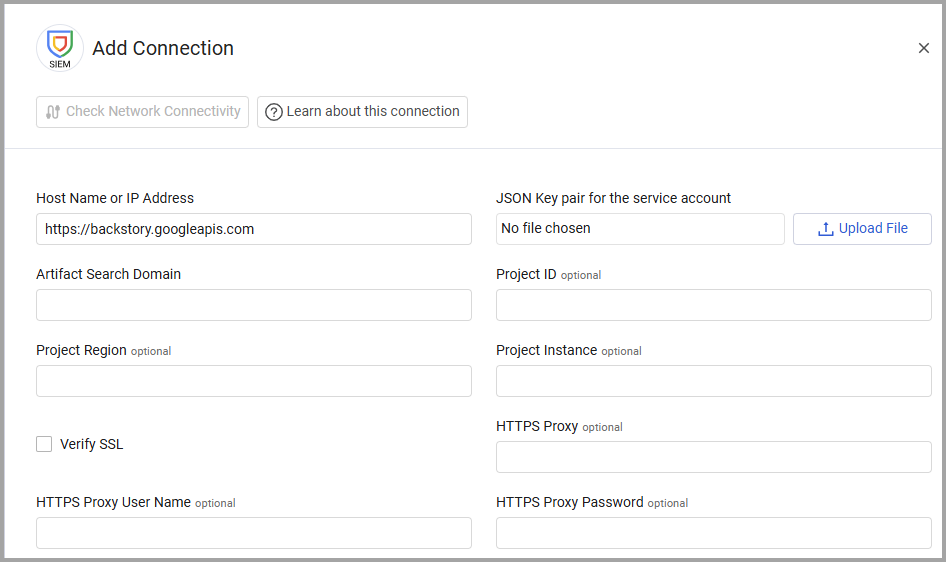
1. **Host Name or IP Address** *(default: `https://backstory.googleapis.com`)* - The hostname or IP address of the Google Security Operations SIEM server. The format should be like the following example: `https://{REGION}.backstory.googleapis.com`.
2. **JSON Key pair for the service account** - Upload the JSON file you have created for your service account.
See [Using OAuth 2.0 for Server to Server Applications | Authorization | Google for Developers](https://developers.google.com/identity/protocols/oauth2/service-account#creatinganaccount) for instructions on [how to create a service account and the JSON key](https://docs.axonius.com/axonius-help-docs/docs/g-suite-by-google#step-6-create-a-service-account). In the **OAuth scopes (comma-delimited)** field, enter `https://www.googleapis.com/auth/chronicle-backstory`.
5. **Artifact Search Domain** - Specify the artifact domain name associated with the assets. The format should be like the following example: `TENANT.backstory.chronicle.security`.
### Optional Parameters
1. **Project ID**, **Project Region**, and **Project Instance** - Optional details you can provide about the project you're working on.
2. **Verify SSL** - Select whether to verify the SSL certificate of the server against the CA database inside of Axonius. For more details, see [SSL Trust & CA Settings](https://docs.axonius.com/axonius-help-docs/docs/certificate-settings#ssl-trust-ca-settings).
3. **HTTPS Proxy** - Connect the adapter to a proxy instead of directly connecting it to the domain.
4. **HTTPS Proxy User Name** - The user name to use when connecting to the value supplied in **Host Name or IP Address** via the value supplied in **HTTPS Proxy**.
5. **HTTPS Proxy Password** - The password to use when connecting to the server using the **HTTPS Proxy**.
To learn more about common adapter connection parameters and buttons, see [Adding a New Adapter Connection](https://docs.axonius.com/axonius-help-docs/docs/adding-a-new-adapter-connection).
## Advanced Settings
Note
Advanced settings can either apply to all connections for this adapter, or to a specific connection. Refer to [Advanced Configuration for Adapters](https://docs.axonius.com/axonius-help-docs/docs/advanced-configuration-for-adapters).
1. **Number of days to fetch** - Define the number of last days to fetch from.
2. **Ignore bad responses in fetch devices process** - Select this to ignore a bad response (such as 400 error) in the Devices fetch and still run through the number of days configured.
3. **Preformed UDM Search** - Enable this to have the adapter perform Unified Data Model searches. When enabled, the following optional fields become available:
1. **Queries** - An array of string queries to execute.
2. **Delimiter**- Enter a character or string used to separate multiple UDM queries in the Queries field. Change the delimiter if your UDM queries contain commas (e.g., queries with comma-separated values). You can use any character or string as a delimiter (e.g., semicolon ;, pipe |, or custom strings)
3. **Fetch last X hours ago** - Define the fetch's time window. The default is 1 hour.
4. **Fetch size** - Define the result batch size. The default is 1000 records.
Note
To learn more about **Adapter Configuration** tab advanced settings, see [Adapter Advanced Settings](https://docs.axonius.com/axonius-help-docs/docs/advanced-settings).